
Windows Installation
Prerequisites
- Windows 10 or 11 (64-bit)
- Internet access for downloading Docker images (~5 GB)
- At least 8 GB RAM and 20 GB free disk space
- Download the EasySafe Installer: EasySafe-Setup.exe
- Run the installer — Windows SmartScreen may show a security warning because the installer is not yet code-signed. Click “More info” and then “Run anyway” to proceed.
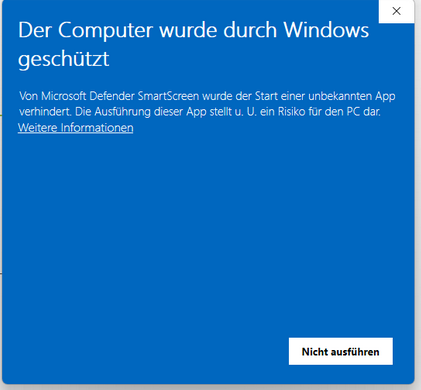
Windows SmartScreen blocks unsigned software — click “More info” and then “Run anyway” to continue.
- The installer automatically installs Docker Desktop, Git, GitHub CLI, TigerVNC, and Python if not already present. Click Yes to confirm.
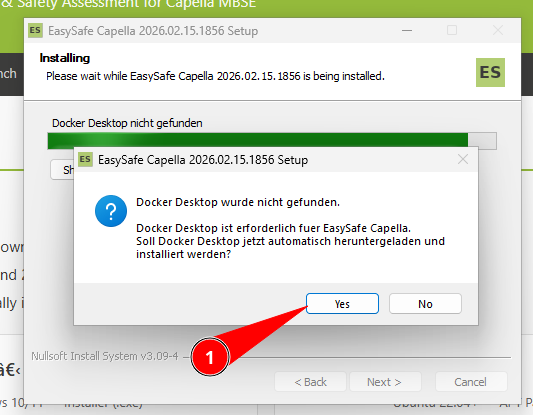
The installer detects that Docker Desktop is missing and offers to install it automatically.
- After Docker installation, a restart is required. Click “Close and restart” — after reboot, the EasySafe installer resumes automatically.
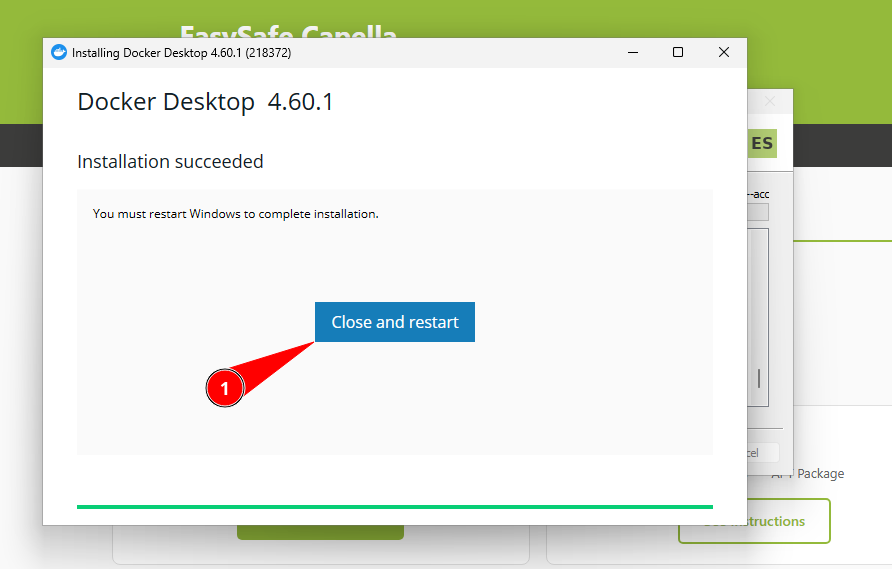
Docker Desktop was installed successfully — a restart is needed to complete the setup.
- After reboot, Docker Desktop shows a welcome screen. Click “Skip” in the top right — no Docker account is required.
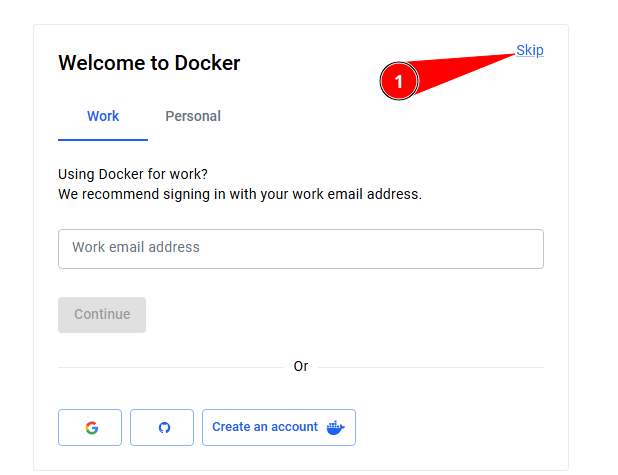
Skip the Docker Desktop sign-in — no account needed for EasySafe.
- Click “Finish” at the end of the installer to launch EasySafe Capella
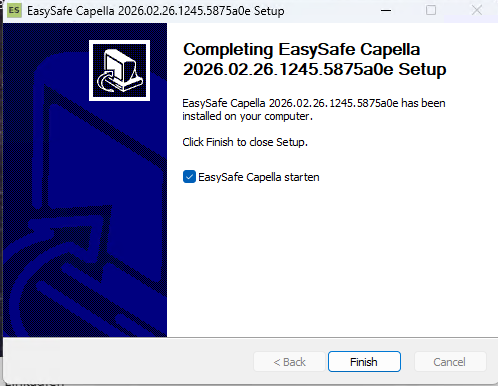
Click Finish to launch EasySafe Capella after installation.
- The EasySafe splash screen opens — select your workspace folder and click Start
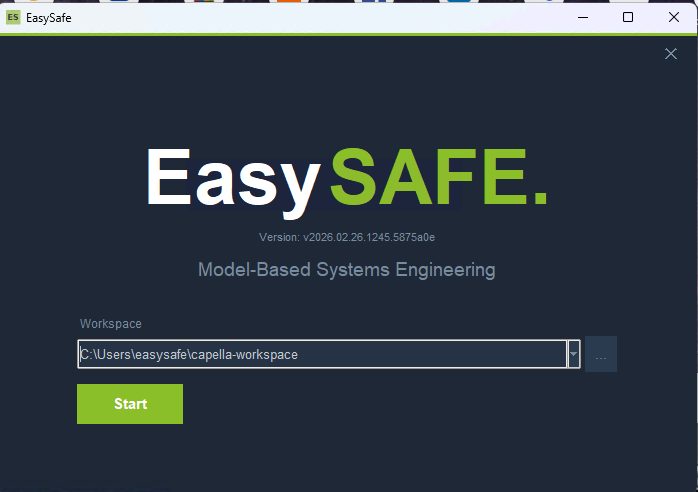
The EasySafe splash screen — select a workspace folder and click Start.
After clicking Start, EasySafe sets up Docker and starts the Capella containers. A progress bar shows the current status:
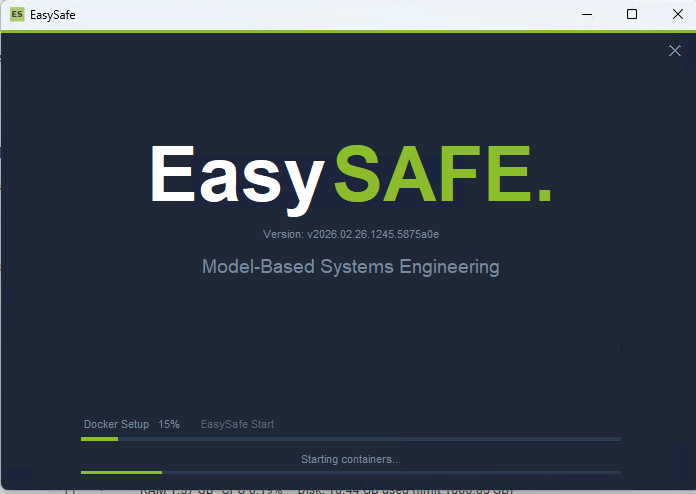
EasySafe starting up — Docker containers are being configured and launched.
- Select your workspace folder and click Start
- On first start, Docker images are pulled automatically (~5 GB)
- A progress bar shows the startup status — Capella starts and the VNC viewer opens automatically
- The launcher checks for installer updates and Docker image updates on each start
- If an update is available, an orange Update button appears — click it to download and install the update. You can also skip the update by clicking Next
For advanced users, the installer also adds capella-docker to the system PATH. Open a new terminal (PowerShell or CMD) to use it from any directory.